Skip to content

Version 2.2.0 New instrument panel

DeviceLabOffroad

Field instruments for your phone.

GNSS position, a card compass, 4x4 pitch and roll dials, a G-ball and barometric altitude, plus network, testing and device-health tools: 44 in all, read from your phone’s own sensors. When a sensor is missing or Android doesn’t share a value, the app says so instead of guessing.

Free on Google Play · Contains ads · No account · Android 7.0+

Tools
44
Field tools
17
Export formats
3
Android
7.0+
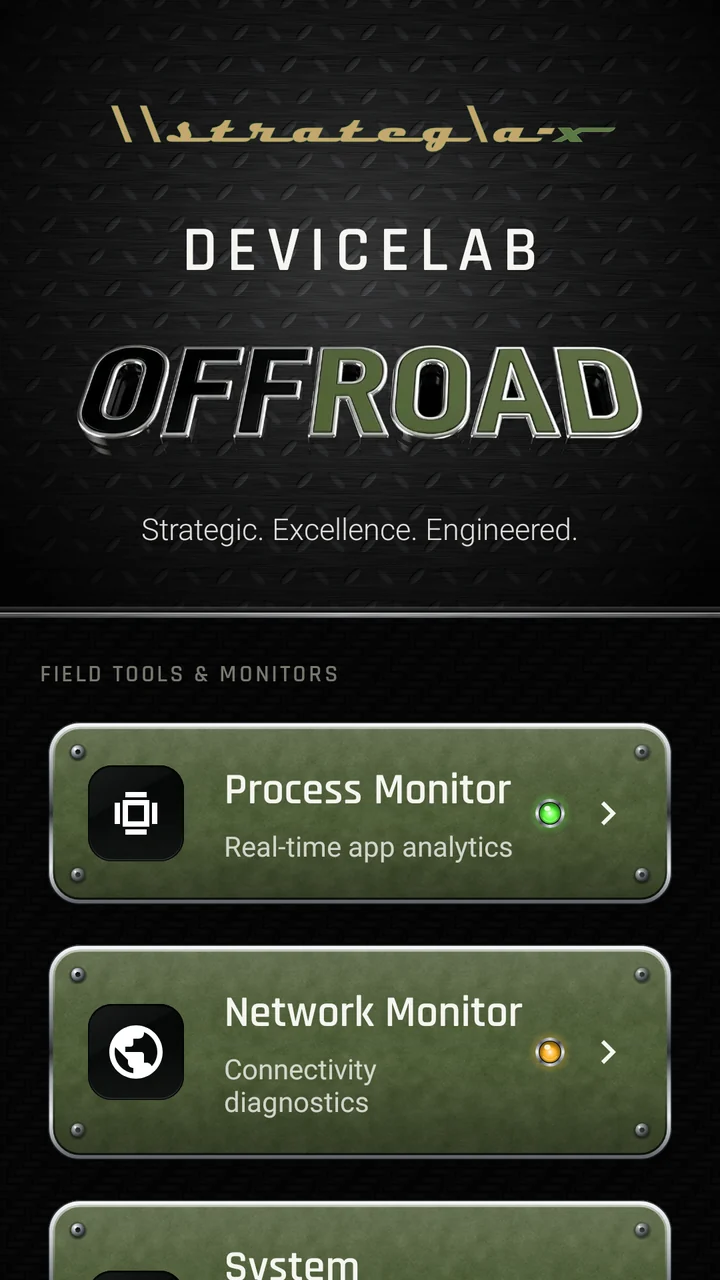
DeviceLab Offroad main screen: diamond-plate nameplate and olive tool modules, each with a status light
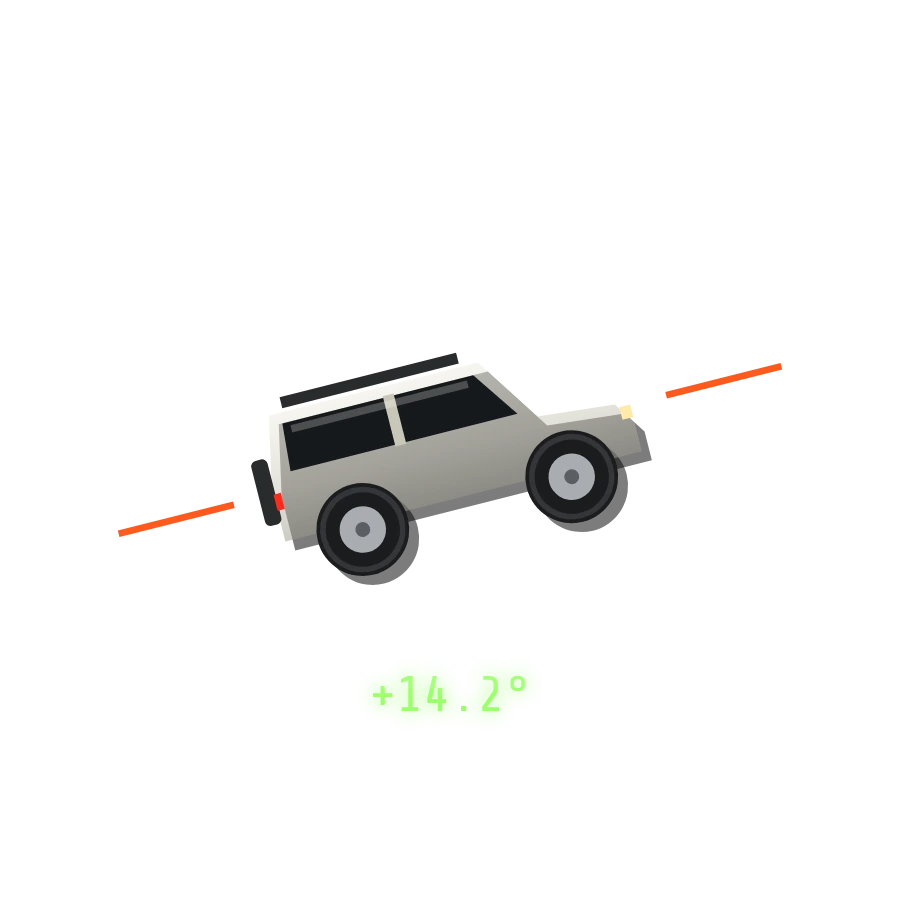
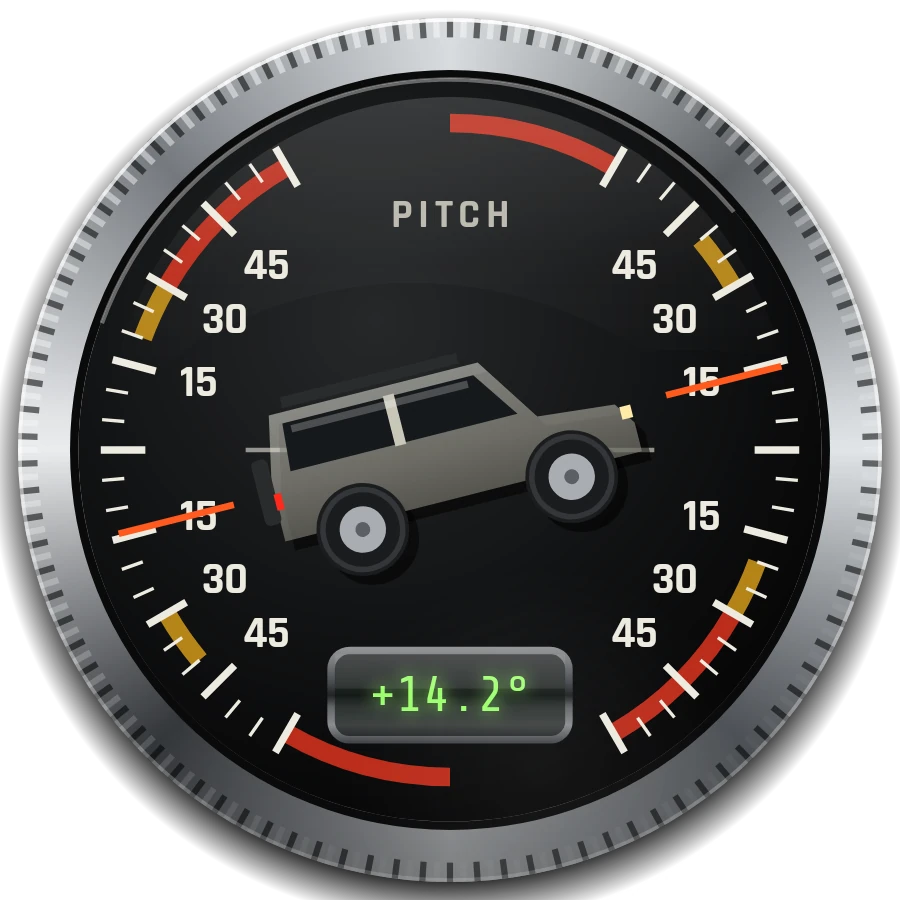
Pitch attitude dial: a side view of a 4x4 at +14.2 degrees, with amber and red zones
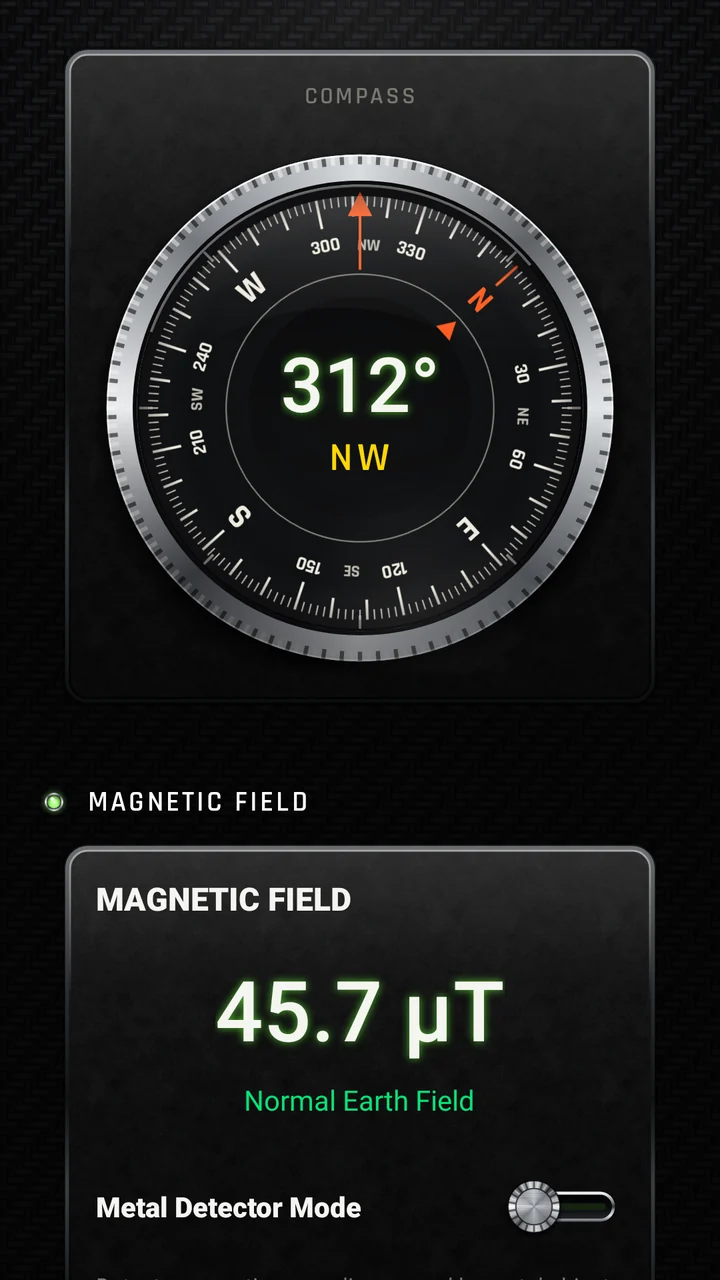
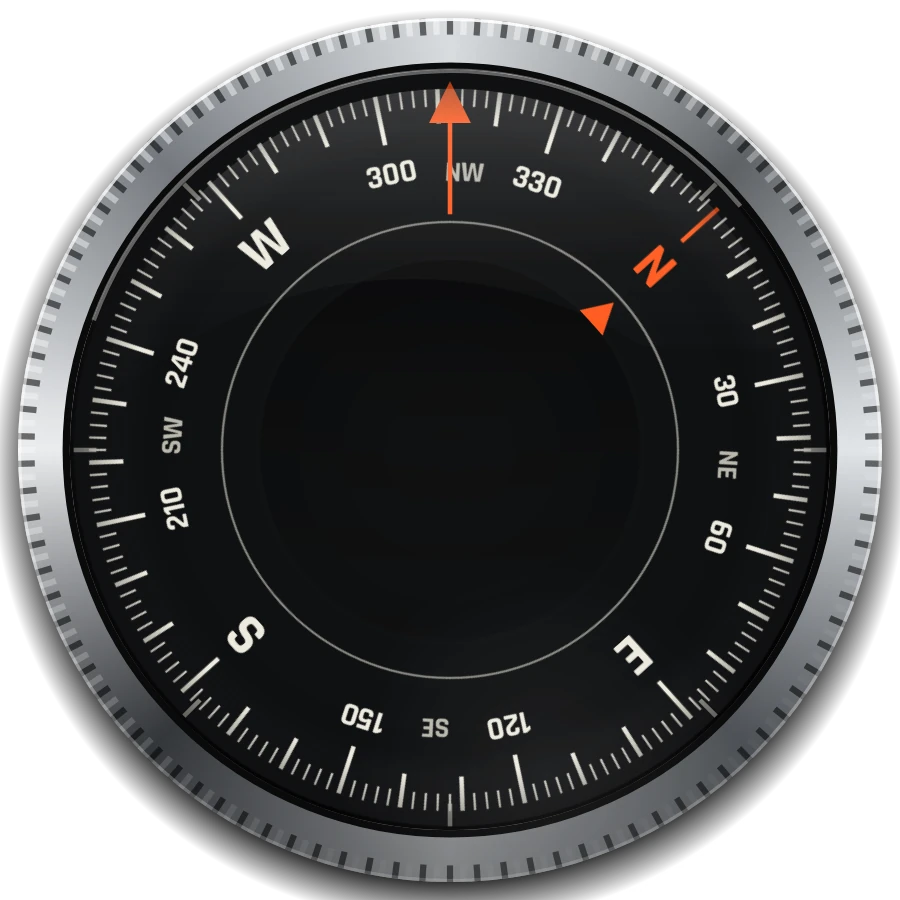
Card compass inside a knurled chrome bezel
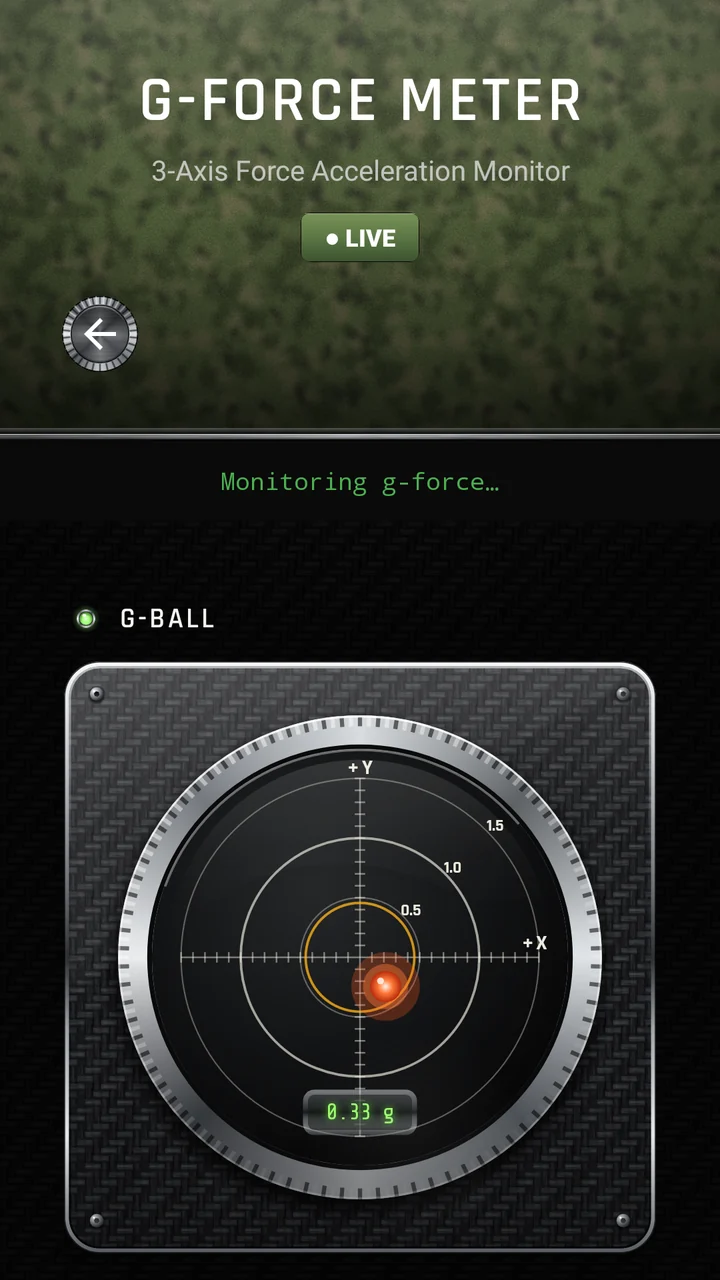
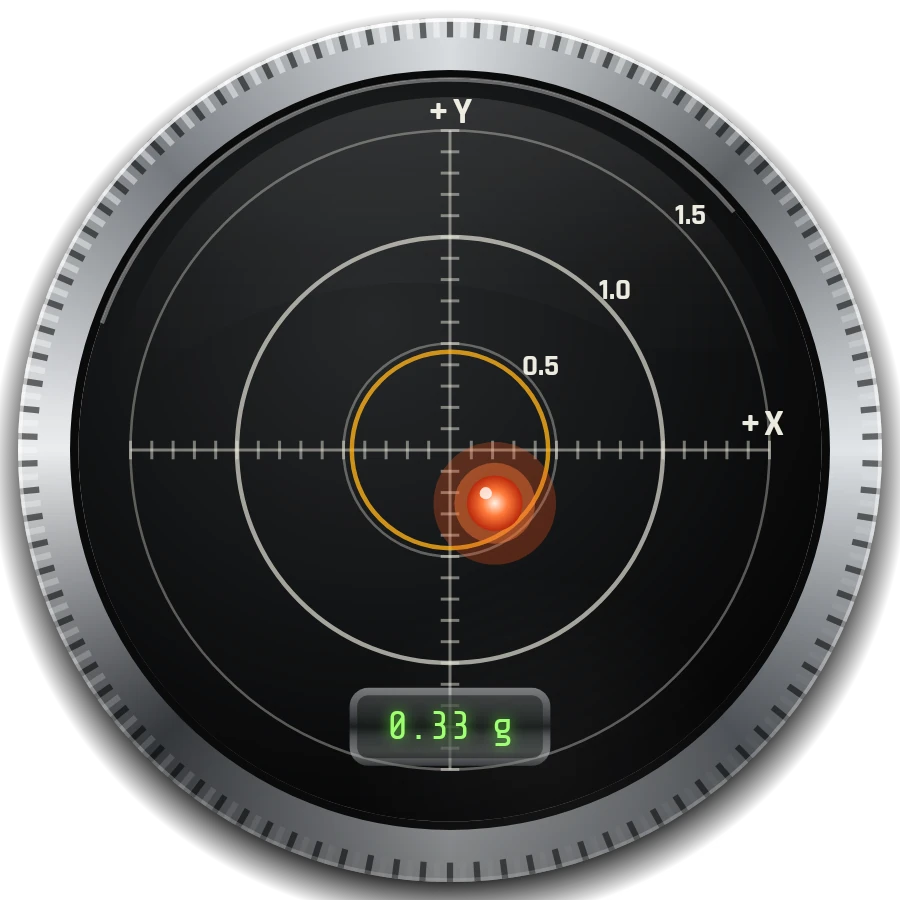
G-ball with an amber peak ring and a 0.33 g readout

01New in 2.2.0

Dials that read like real gauges

Version 2.2.0 rebuilds DeviceLab Offroad as an instrument panel. Where a dial says more than a number, there is now a dial, showing the same readings the screens already measured. A green window inside each one keeps the exact value.

Pitch dial: side view of a 4x4 tilted nose-up, reading +14.2 degrees
Pitch · side view
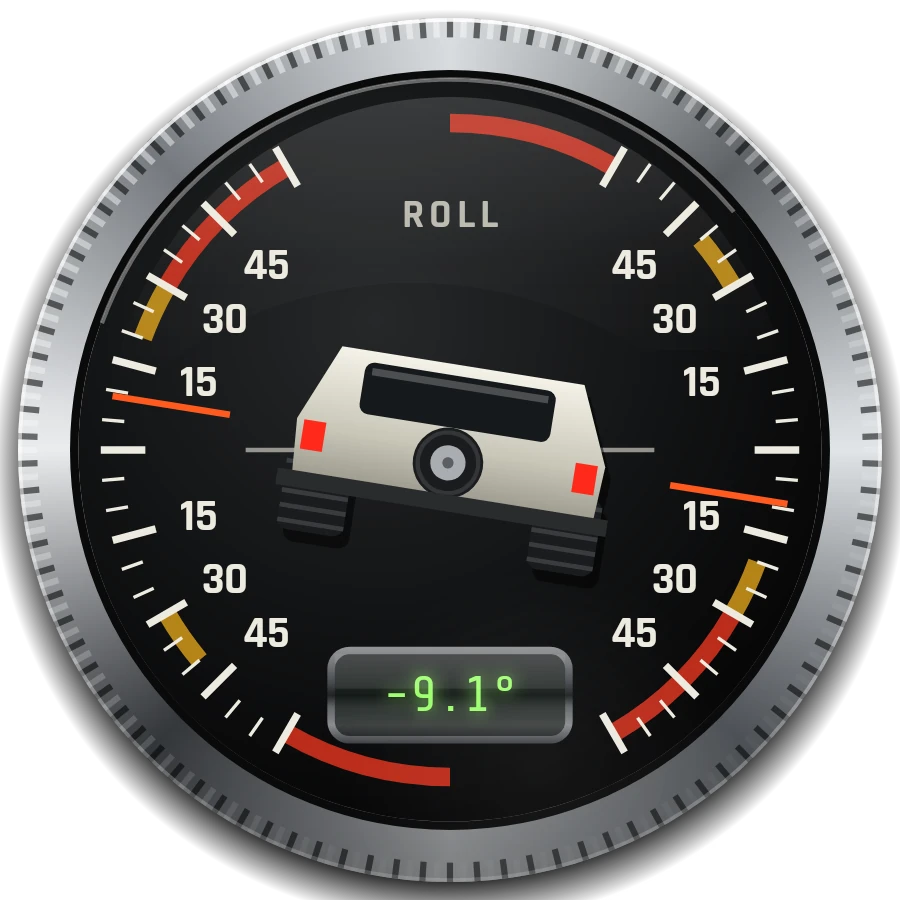
Roll dial: rear view of a 4x4 leaning left, reading -9.1 degrees
Roll · rear view

Digital Inclinometer

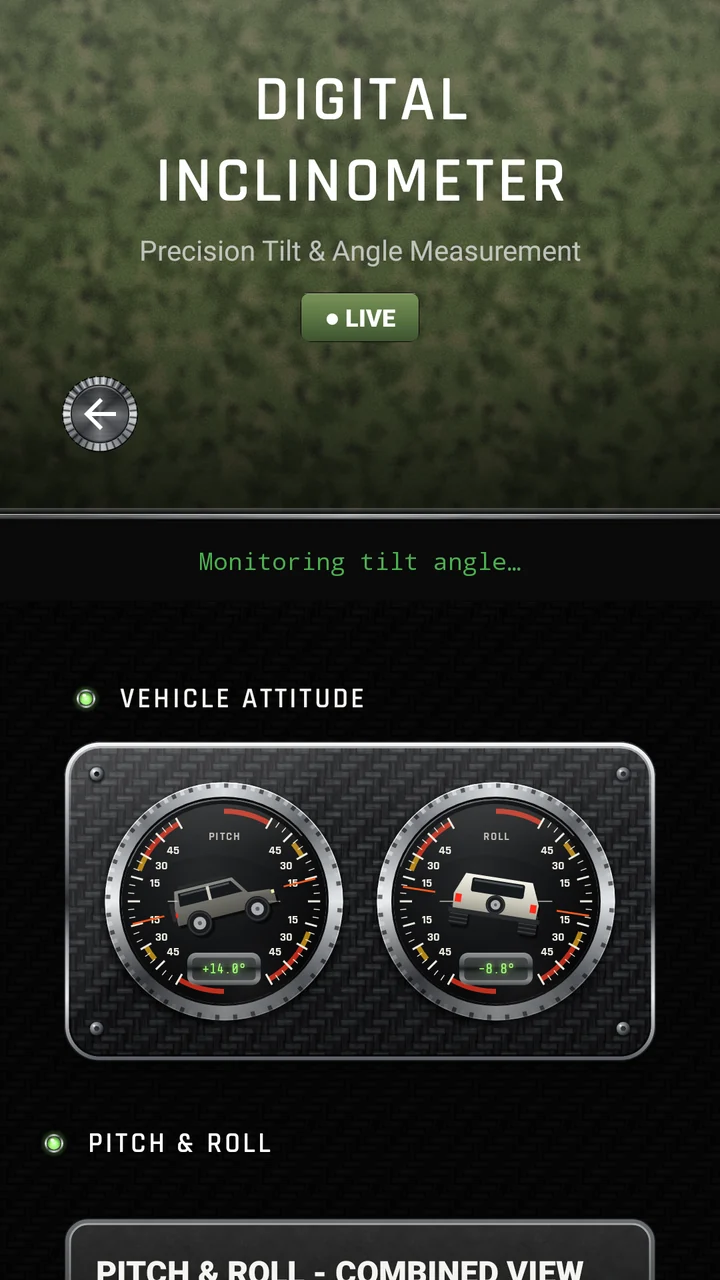
4x4 pitch & roll attitude dials

A side view of a 4x4 tilts with pitch and a rear view with roll, against a fixed horizon and a 0–60° scale. Angles are measured from gravity with the accelerometer, so they’re meaningful while the phone is still and firmly mounted.

  • Amber, 20–30°: the dial and window shade amber
  • Red, beyond 30°: the dial and window turn red

Rules of thumb, not the rated limits of any particular vehicle. Check your vehicle’s manual. It is not a vehicle safety system.
G-Force Meter G-ball: a glowing ball on rings every 0.5 g, with an amber peak ring and a 0.33 g readout window

G-Force Meter

G-ball with peak ring

X / Y in g · rings every 0.5 g

The G-ball plots sideways against forward g-force with a short trail. An amber ring holds the highest X/Y value since START. Values include gravity, so lay the phone flat for a centred ball.

Digital Compass card compass inside a knurled chrome bezel with an orange lubber line

Digital Compass

Card compass

Magnetic heading · field in µT

The printed card turns under the orange lubber line with a fluid-damped swing, inside a knurled bezel. Heading and direction sit in the centre of the dial. It points to magnetic north.

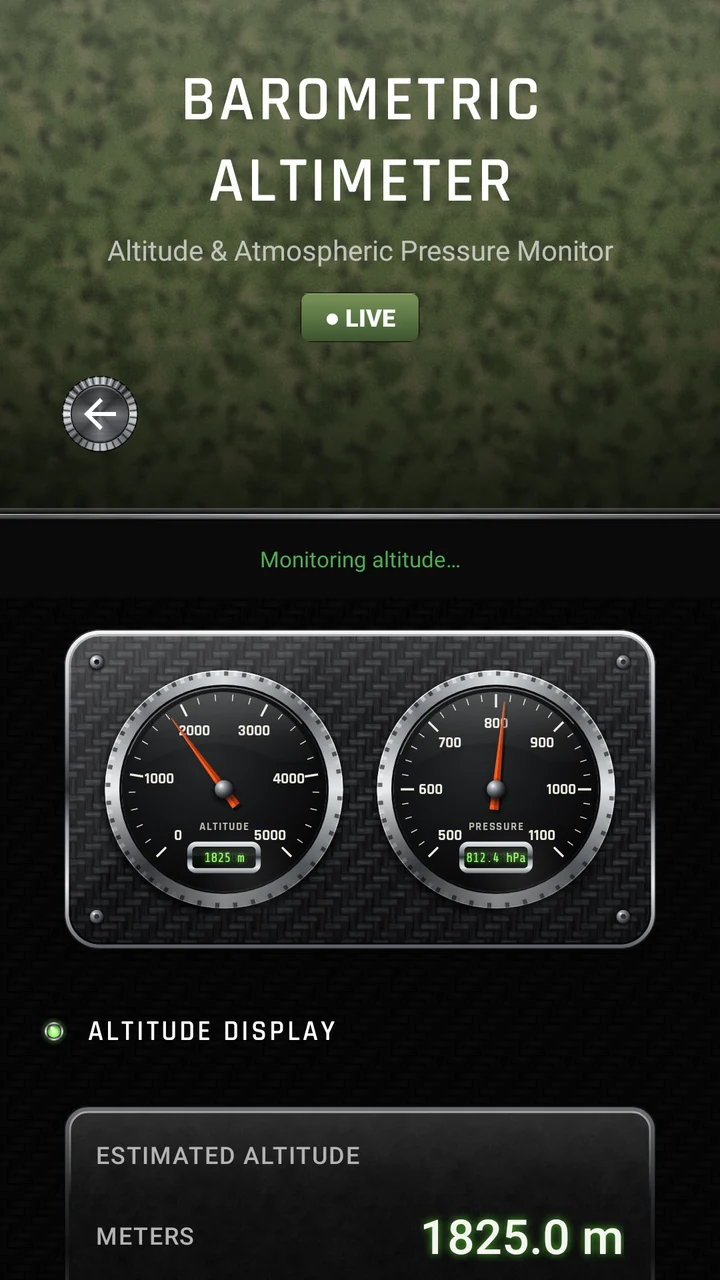
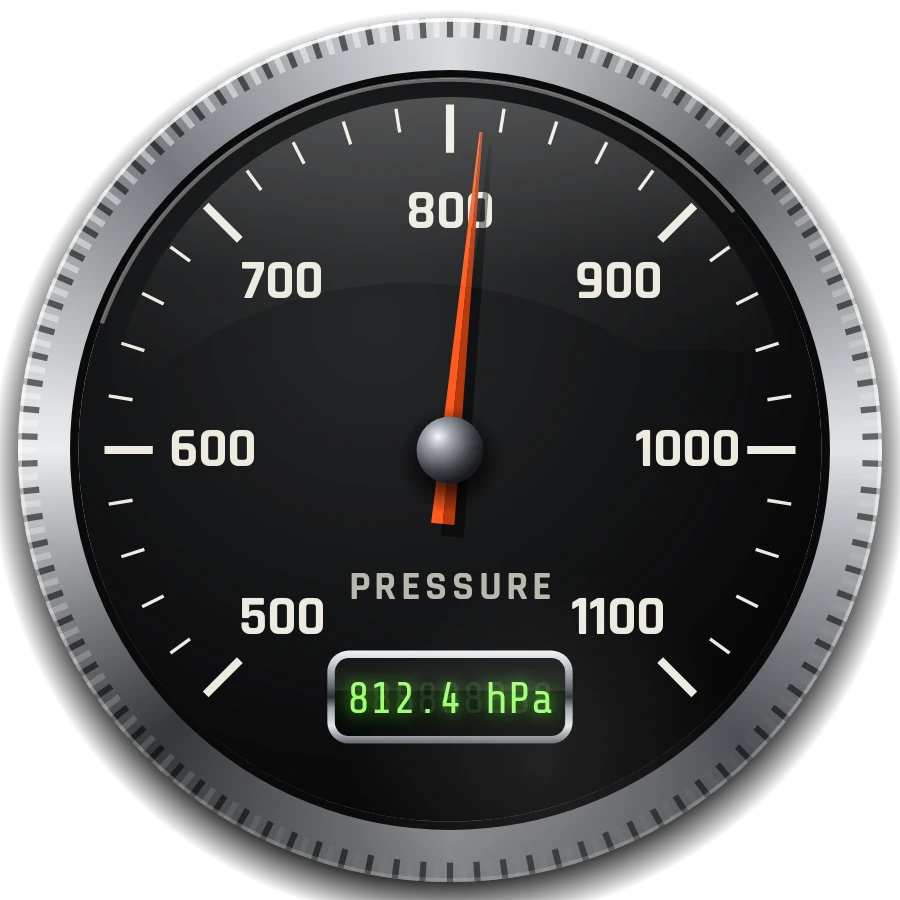
Barometer dial scaled 500 to 1,100 hPa with a damped needle and a digital window

Barometric Altimeter

Altitude & barometer dials

0–5,000 m · 500–1,100 hPa

Two dials, estimated from air pressure. A needle stops at the end of its scale; the window always shows the exact value. Needs a barometer.

  • Battery charge gauge

    Battery Analyzer shows the charge on a gauge with an amber band below 30% and a red band below 15%.

  • Speed-test speedometer

    Network Speed Test follows the download rate live. The scale ends at 100 Mbps; faster results show in the window.

  • Damped needles

    Needles swing toward each reading with a short, damped motion, and jump straight to the value when Android’s animations are off.

02Exploded view

Taken apart, layer by layer

Each dial is drawn by the app’s own code in layers: a printed face in a chrome bezel, the parts that move, and a domed glass on top. Scroll to separate them, or pick another instrument.

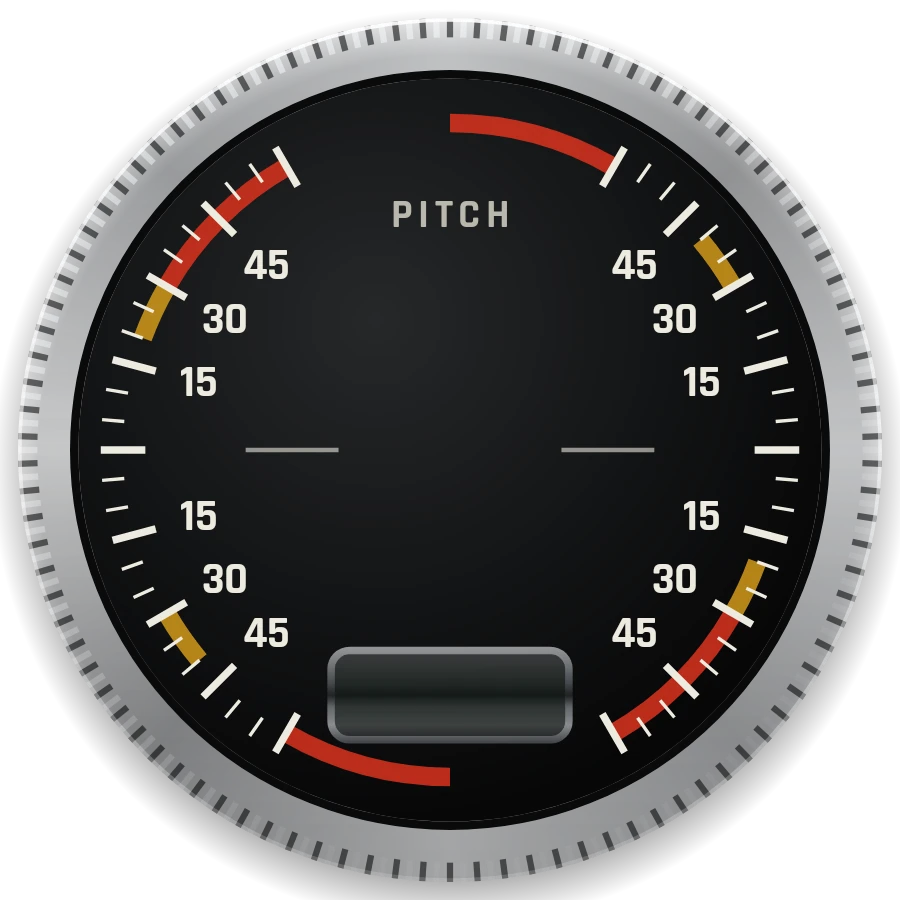
Exploded view of the Attitude dial: 1, Knurled chrome bezel & printed dial; 2, Vehicle silhouette & digital window; 3, Domed glass.

Digital Inclinometer · pitch

  1. Layer 1: Knurled chrome bezel & printed dialFixed horizon and a 0–60° scale, shaded amber from 20° and red from 30°.
  2. Layer 2: Vehicle silhouette & digital windowA side view of a 4x4 tilts with pitch; the window shows the exact angle.
  3. Layer 3: Domed glassA glare highlight over the face, like a real gauge lens.

The main screen

Built from real parts

The main screen is drawn from the same skin parts as the rest of the app: a diamond-plate nameplate over carbon fibre, then an olive tool module for every tool, each field tool with its own status light.

  1. Part 1: Diamond-plate nameplateThe header of the main screen, with the DeviceLab Offroad wordmark.
  2. Part 2: Olive tool modulePowder-coated olive with a chrome bezel and cap screws, one per tool.
  3. Part 3: Status light: readyGreen when the tool can read what it needs on this phone.
  4. Part 4: Status light: needs attentionAmber when a permission, setting or connection is missing.
Exploded view of the DeviceLab Offroad main screen with its parts lifted above it: 1, Diamond-plate nameplate; 2, Olive tool module; 3, Status light: ready; 4, Status light: needs attention.

03Status lights

Know what your phone can read

Every tool in Field Tools & Monitors has a status light, checked each time you return to the main screen. It tells you before you tap whether the tool is ready on this phone.

A11yTalkBack reads each status aloud, so colour is never the only signal. On this page, every light is labelled in words too.

Field Tools & Monitors17
  • Digital Compass

    Magnetometer found

    Green: Ready to use.

  • GNSS Measurements

    Location is turned off

    Amber: The hardware is there, but a permission, setting or connection is missing.

  • Barometric Altimeter

    No barometer on this phone

    Unlit: This phone does not have the sensor the tool reads.

04Materials

Engineered like field equipment

The skin is built from seamless, density-scaled material tiles and drawn components, so the weave and the tread keep their physical size on every screen.

  • Carbon-fibre twill

    Background of every screen

  • Olive camo plate

    Screen headers

  • Diamond plate

    Main-screen nameplate

  • Gunmetal key

    Buttons that sink when pressed

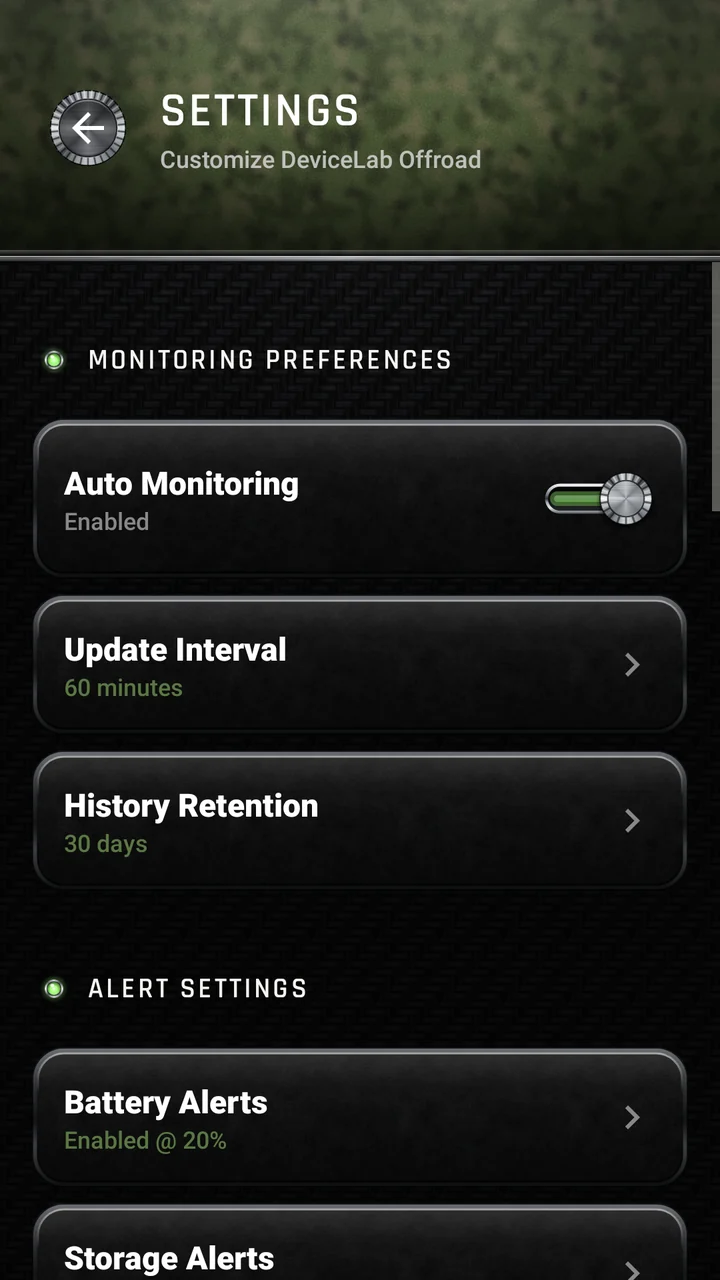
  • Slide switch

    Settings; the slot lights green when on

  • LED bar graph

    Replaces flat progress bars

05Screens

Rendered by the app itself

Every frame is a real screen drawn by the app’s own code, with sensor readings fed in as a phone’s sensors would deliver them. Nothing on screen is painted in.

  • Main screen: Nameplate and tool modules with status lights
    Main screenNameplate and tool modules with status lights
  • Digital Inclinometer: 4x4 pitch and roll attitude dials
    Digital Inclinometer4x4 pitch and roll attitude dials
  • Digital Compass: Card compass with the heading readout
    Digital CompassCard compass with the heading readout
  • G-Force Meter: G-ball with the peak ring
    G-Force MeterG-ball with the peak ring
  • Barometric Altimeter: Altitude and barometer dials
    Barometric AltimeterAltitude and barometer dials
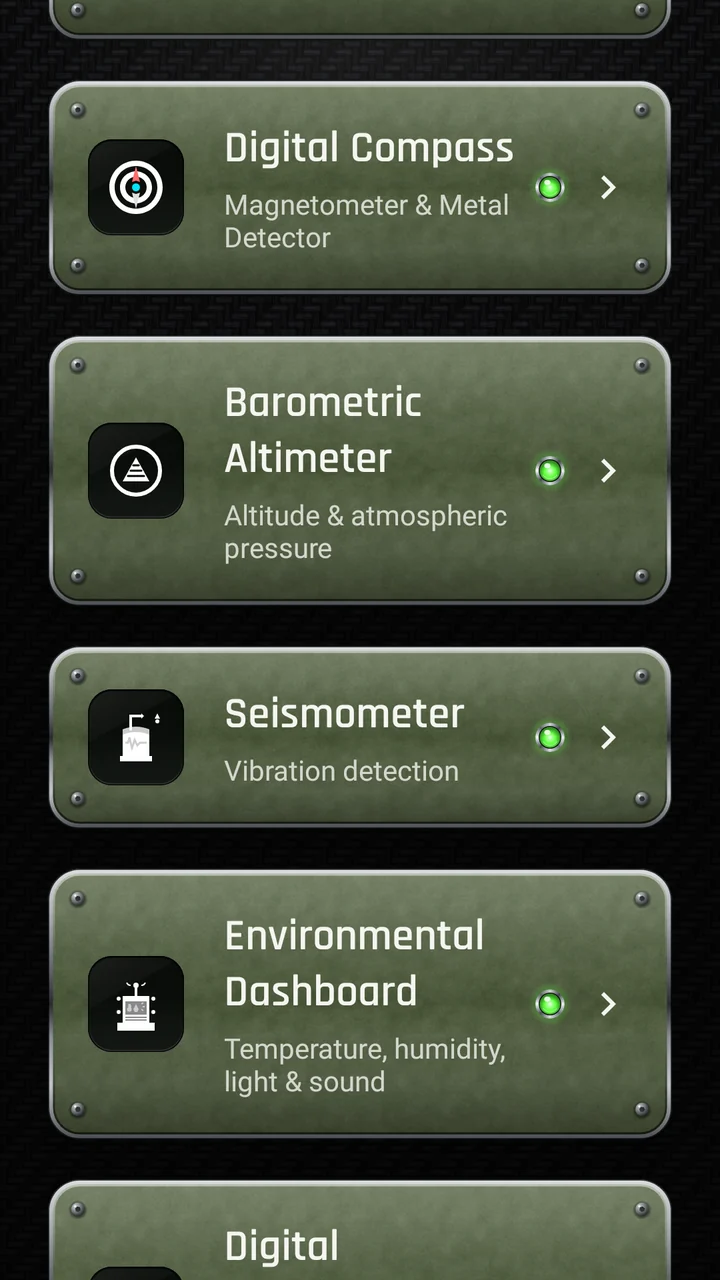
  • Field tools: Compass, altimeter, seismometer and environmental modules
    Field toolsCompass, altimeter, seismometer and environmental modules
  • Settings: Slide switches and alert thresholds
    SettingsSlide switches and alert thresholds

06The kit

44 tools in five sections

Listed in the app’s default order. Reorder or hide whole sections in Settings → Customize Dashboard.

Field Tools & Monitors

17
  • Process Monitor

    Installed apps with foreground time over 7 days and last use. Needs Usage Access.

  • Network Monitor

    Connection type, Wi-Fi and mobile details, local and public IP, signal quality and a ping test.

  • System Maintenance

    A health overview from free memory and storage; clears this app’s own temporary files.

  • Wi-Fi Spectrum

    Nearby networks with signal in dBm, band (2.4, 5 or 6 GHz), channel and security.

  • Bluetooth Spectrum

    Nearby discoverable devices with type, pairing state and RSSI where reported.

  • Digital Compass

    Card compass with magnetic heading, field strength in µT and a metal-detector mode.

  • Barometric Altimeter

    Altitude and barometer dials, estimated from air pressure. Needs a barometer.

  • Seismometer

    How strongly the phone is shaking, in m/s² with gravity removed, from LOW to SEVERE.

  • Environmental Dashboard

    Temperature, pressure, humidity, light, uncalibrated sound level and magnetic field, where your phone has the sensors.

  • Digital Gyroscope

    Rotation speed around X, Y and Z in rad/s, with per-axis charts.

  • Linear Accelerometer

    Acceleration along X, Y and Z in m/s², gravity removed.

  • G-Force Meter

    G-ball with a short trail and an amber peak ring; X, Y and Z in g.

  • Digital Inclinometer

    4x4 pitch and roll attitude dials with angles in degrees.

  • GNSS Measurements

    Latitude, longitude, altitude, speed, accuracy and satellites used / in view. Record and export.

  • Component Temperature

    Battery temperature, voltage and current; CPU temperature where Android allows.

  • Luminescence Meter

    Light in lux, described from Pitch Black to Direct Sunlight.

  • Analytics Dashboard

    Health score, app usage, battery and storage trends from your stored snapshots.

Device Testing

15
  • Device Benchmark

    CPU (ops/ms), memory and storage (MB/s) against fixed reference values, graded S to F.

  • Hardware Diagnostics

    Screen, touch, speaker, vibration and sensor checks.

  • Automation Rules

    IF-THEN rules that notify you about battery, memory, free storage or charging.

  • Startup Optimizer

    Apps that start after boot, least-used first, with App info shortcuts.

  • Floating Monitor

    An overlay with health score, RAM, battery and storage on top of other apps.

  • Charging Analyzer

    Charger type, current, measured charging speed, time to full, cycle count where reported.

  • Permissions Analyzer

    The sensitive permissions each installed app holds, with a rule-of-thumb label.

  • CPU Core Monitor

    Per-core clock speeds, governor, temperature and Android’s thermal status.

  • Network Speed Test

    Speedometer, ping, download and upload against public test servers.

  • Storage Analyzer

    Used and free storage, sizes by category, and large files where Android allows.

  • App Manager

    Installed apps with size, version, install date and permission count.

  • Thermal Monitor

    CPU, battery, GPU and skin temperatures where readable, with a throttling warning.

  • Boot Analyzer

    Last boot, uptime and the apps that start at boot.

  • RAM Booster

    Live memory readings; on Android 13 and earlier it can ask Android to stop background apps.

  • Screen Time Tracker

    Total time, unlocks and most-used apps, from today to the last 30 days.

Insights & Achievements

02
  • Health History

    Stored snapshots for today, the week or the month, with period averages and a trend.

  • Achievements

    15 badges in bronze, silver and gold, tracked from real events on your phone.

System Utilities

05
  • Battery Saver

    Android’s battery estimates, with shortcuts to the system power settings.

  • Wake Lock Detector

    Apps ranked by foreground-service time over about the last 24 hours.

  • Cache Cleaner

    Per-app cache sizes reported by Android, with shortcuts to clear them in App info.

  • QR Code Generator

    Scannable QR codes for text, links, email, phone numbers and Wi-Fi details.

  • Network Ping Tool

    Five pings to a host, Google, Cloudflare or your router, with latency and TTL.

Advanced Tools

05
  • Visual Analytics

    Charts of health, battery, memory and storage from stored snapshots.

  • Battery Analyzer

    Charge gauge with amber and red bands, Android’s health status, temperature and voltage.

  • Optimizer

    Rule-based battery, memory and storage checks with findings you can act on.

  • Live Monitor

    Memory use, network speed and uptime every second. CPU usage is N/A on Android 8+.

  • Device Info

    Hardware, Android build, CPU, memory, display and feature details.

07Straight answers

Measured, never invented

When a sensor is missing or Android doesn’t share a value, the app shows N/A, Unavailable or dashes, never an estimate. Where Android reserves an action for you, it opens the right system screen instead of pretending to act.

Android limits, stated plainly

  • Android 8 and later do not let apps read overall CPU load, so CPU usage shows N/A.
  • Apps cannot clear other apps’ caches. Cache Cleaner shows the sizes and opens App info, where you clear them.
  • Android does not tell apps how much battery each app used. Use Settings → Battery for per-app use.
  • Other apps’ wake locks are hidden from apps. Wake Lock Detector ranks foreground-service time instead.
  • On Android 14 and later apps cannot stop other apps, so the RAM Booster button is disabled there.
  • Some tools need Usage Access, location, nearby devices or the microphone. Every permission is optional.

Not in this app

  • NOMaps, routes or turn-by-turn navigation
  • NOSaved waypoints
  • NOA satellite sky plot or per-satellite signal strength
  • NOWeather forecasts or air-quality readings
  • NOEarthquake magnitudes (Richter or otherwise)
  • NOMagnetic-declination correction (the compass shows magnetic north)

DeviceLab Offroad is a supplementary tool. For remote travel, carry dedicated navigation equipment and paper maps. Readings depend on your phone’s hardware and are not certified measurements.

08Privacy

Your readings stay on your phone

No account, and no server of ours to send anything to. Here is exactly what is kept, what isn’t, and when data leaves the device. The full privacy policy (opens in a new tab) has the details.

  • No account, no app server

    There is nothing to sign up for. Strategia-X does not receive, store or sell your data.

  • Kept on your phone

    Health snapshots (only while Auto-Monitoring is on), achievements, automation rules and settings stay in the app’s private storage, excluded from Android cloud backup.

  • Used live, not stored

    Location, microphone level, and Wi-Fi and Bluetooth scan results are shown on screen and not saved. Sensor recordings stay in memory until you export them.

  • Network only when you ask

    Speed Test, the ping tools and Network Monitor’s public-IP lookup contact their test servers only when you use them.

  • Ads, with consent where required

    The app shows Google AdMob ads. In regions that require it, Google’s consent form appears before any ad is requested; change it in Settings → Ad Privacy Settings.

  • Delete on your terms

    Settings → Clear All Data deletes the health history. Android’s Clear storage, or uninstalling, deletes everything.

Works without signal

The sensor tools work without mobile signal or internet. The network tools, Speed Test and the ping tools need a connection.

OFFLINE · OK

09Specifications

Spec plate

DeviceLab Offroad

com.devicelab.offroad

Version
2.2.0 (build 207)
Requires
Android 7.0 (API 24)+
Targets
Android 16 (API 36)
Tools
44 in 5 sections
Recording
Up to 6,000 samples
Export
JSON · CSV · PDF
Widgets
Monitor · Battery · Health
Built with
Kotlin · Hilt · Room
Typefaces
Rajdhani · Share Tech Mono
Account
None
Ads
Google AdMob
Developer
Strategia-X

10Field manual

User guide

How to get readings you can trust from the field instruments, what each needs, and where Android draws the line. The same guide is built into the app, searchable and offline.

Getting started

The main screen

A scrolling list of 44 tools in five sections. Settings, Start Tutorial and User Guide always stay at the bottom.

Steps

  1. 01Open the app. The 8-step tutorial runs by itself the first time; run it again any time with Start Tutorial.
  2. 02Tap a card or button to open that tool. Floating Monitor is the exception: it switches the overlay on or off.
  3. 03Check the status light on each field tool: green is ready, amber needs a permission, setting or connection, unlit means no sensor.
  4. 04Reorder or hide whole sections in Settings → Customize Dashboard, then tap Save Changes.

Good to know

  • Status lights are checked each time you return to the main screen, and TalkBack reads them aloud.
  • Every permission is optional. The app asks when you open a tool that needs it, and that tool explains what is missing.
  • Long-press the app icon for shortcuts: Health Scan, Battery, Network and Export.
Reading the values

Everything comes from your phone’s sensors and from what Android reports. When a value can’t be read, the app shows N/A, Unavailable or dashes instead of an estimate.

Steps

  1. 01Dials swing toward each reading with a short, damped motion.
  2. 02The green digital window inside a dial always shows the exact value, even when the needle has reached the end of its scale.
  3. 03Dashes mean there is no reading yet or the phone cannot provide one; needles then rest at the start of the scale.

Good to know

  • With Android’s animations turned off (Accessibility → Remove animations), needles jump straight to the value.
  • Readings depend on your phone’s hardware and are not certified measurements.

Field instruments

GNSS Measurements

Live position from the phone’s satellite receiver: latitude and longitude, altitude and speed when reported, the accuracy radius Android gives for the fix, and satellites used / in view.

Steps

  1. 01Allow precise location (approximate is not enough) and turn Location on.
  2. 02Tap START. The app takes one fix a second and shows the recording time and sample count.
  3. 03Tap STOP, then export the session with JSON, CSV or PDF.

Good to know

  • Go outside with a clear view of the sky; a fix can take longer without a data connection.
  • Positions stay in this screen’s memory (up to 6,000 fixes) and are discarded when it closes unless you export them.
  • There are no maps, waypoints, routes or sky plot. Carry dedicated navigation equipment and paper maps for remote travel.
Digital Compass

A card compass with magnetic heading, the cardinal direction, field strength in µT and a heading-history chart.

Steps

  1. 01Hold the phone flat, away from the vehicle body, metal, speakers and cables.
  2. 02Read the heading in the centre of the dial and check that MAGNETIC FIELD reads Normal Earth Field (25–65 µT).
  3. 03For Metal Detector Mode, hold the phone still, switch it on and let it take a baseline from the next 30 readings.
  4. 04START and STOP record heading and field strength; export with JSON, CSV or PDF.

Good to know

  • The heading points to magnetic north; the app does not correct for declination.
  • The app has no calibration step of its own. Moving the phone in a figure-8 helps Android recalibrate on many phones.
  • Needs a magnetometer.
Barometric Altimeter

Estimated altitude in meters and feet, and pressure in hPa as measured at your location, on two dials with a trend chart.

Steps

  1. 01Tap START to monitor and record; STOP to finish.
  2. 02Read ESTIMATED ALTITUDE and ATMOSPHERIC PRESSURE in the windows, and the ALTITUDE TREND chart below.
  3. 03Export with JSON, CSV or PDF.

Good to know

  • Altitude assumes the standard sea-level pressure of 1013.25 hPa, so it shifts with the weather. It is most useful for changes over a short time.
  • There is no calibration to a known elevation on this screen. GNSS Measurements shows the receiver’s altitude.
  • Needs a barometer; without one the readings show N/A and START is disabled.
Digital Inclinometer

VEHICLE ATTITUDE dials: a side view of a 4x4 tilts with pitch and a rear view with roll, against a fixed horizon and a 0–60° scale.

Steps

  1. 01Mount the phone firmly or set it on the surface you want to measure.
  2. 02Read PITCH ANGLE (forward/back) and ROLL ANGLE (left/right) in degrees.
  3. 03START and STOP record the angles; export with JSON, CSV or PDF.

Good to know

  • The dials shade 20–30° amber and beyond 30° red. These are rules of thumb, not your vehicle’s rated limits; check its manual.
  • Angles come from gravity, so they are only meaningful while the phone is still.
  • There is no zero button: measure a known level surface to see the offset. It is not a vehicle safety system.

G-Force Meter

Acceleration along X, Y and Z in g, including gravity, with a G-ball, a short trail and an amber peak ring.

Steps

  1. 01Mount the phone firmly and lay it flat for a centred ball.
  2. 02Tap START. The amber ring marks the highest combined X/Y value since START.
  3. 03Tap STOP and export with JSON, CSV or PDF.

Good to know

  • Values follow the phone’s axes, so “forward” depends on how the phone is mounted.
  • A recording keeps up to 6,000 samples, about two minutes.
  • Never use the app while driving.
Seismometer

How strongly the phone itself is shaking: vibration in m/s² with gravity removed, a level from LOW to SEVERE, the peak and the event duration.

Steps

  1. 01Put the phone flat on a solid surface.
  2. 02Tap START, then STOP; export with JSON, CSV or PDF.

Good to know

  • A phone cannot measure an earthquake’s magnitude, so no Richter or other magnitude is shown.
  • Touching or moving the phone registers as vibration.
Environmental Dashboard

Temperature, pressure, humidity, light, sound level and magnetic field from the sensors your phone has, plus the app’s 0–100 comfort score.

Steps

  1. 01Tap START. Allow the microphone only if you want the sound level; everything else works without it.
  2. 02Sensors your phone lacks show N/A and are listed under the status line.
  3. 03Tap STOP and export with JSON, CSV or PDF.

Good to know

  • The comfort score uses temperature, humidity and light only. It is not an air-quality or weather measurement, and there is no forecast.
  • The sound level is relative to your microphone, not a calibrated meter. Audio is never recorded or saved.
  • Many phones have no ambient temperature or humidity sensor.

Data & device health

Recording and exporting

Sensor screens record into memory while open; you choose what to export.

Steps

  1. 01Tap START (or START RECORDING on Component Temperature and Luminescence Meter).
  2. 02A recording keeps up to 6,000 samples; after that the screen shows live values only.
  3. 03Export with JSON, CSV or PDF. Settings → Export Data also exports system snapshots, app usage and reports.
  4. 04Files go to Android/data/com.devicelab.offroad/files/Documents/DeviceLabOffroadExports; share or delete them from the Export screen.

Good to know

  • GNSS, compass, altimeter, seismometer and environmental recordings can only be exported from their own screens.
  • Exports are removed if you uninstall the app.
Auto-Monitoring and Health History

While Settings → Auto Monitoring is on (the default), the app records a snapshot in the background at your Update Interval.

Steps

  1. 01Choose an Update Interval from 15 minutes to 6 hours, and a History Retention of 7 to 90 days.
  2. 02Open Health History and pick TODAY, WEEK or MONTH for averages, a trend and four charts.
  3. 03Add the System monitor, Battery or Health score widget from your home screen’s widget list.

Good to know

  • The health score is the average of free memory %, battery charge % and free storage %. It is the app’s own indicator, not a battery-health rating.
  • Android may run background snapshots later than scheduled.
Cache, memory and battery tools

These screens show what Android reports and open the system screen where you act, because Android reserves those actions for you.

Steps

  1. 01Cache Cleaner lists apps with more than 100 KB of cache; tap one for App info → Storage → Clear cache.
  2. 02RAM Booster on Android 13 and earlier asks Android to stop background apps and shows the measured change in available memory, which can be 0 or negative.
  3. 03Battery Saver opens Android’s Battery Saver, battery usage and display settings.

Good to know

  • System Maintenance and Optimizer clear only DeviceLab Offroad’s own cache and report the measured amount.
  • Cache Cleaner, Wake Lock Detector and the app-usage screens need Usage Access.

Network tools

Network Speed Test

A speedometer follows the download rate live, then rests on the result, with ping, upload and a connection-quality rating.

Steps

  1. 01Tap Start Test (later Test Again).
  2. 02Ping is the median of 5 connection times; download runs up to 5 MB or 10 seconds; upload sends 1 MB.

Good to know

  • A test uses up to about 6 MB of data and needs an internet connection.
  • If a step fails, the screen shows an error instead of a number.
Wi-Fi and Bluetooth Spectrum

Nearby Wi-Fi networks and discoverable Bluetooth devices, from Android’s own scans.

Steps

  1. 01Wi-Fi: turn Wi-Fi and Location on, allow precise location, then tap SCAN NETWORKS.
  2. 02Bluetooth: allow Nearby devices (Android 12+) or location (Android 11 and lower), then tap SCAN DEVICES.

Good to know

  • Android allows only a few Wi-Fi scans every two minutes, so a new scan can return the previous results.
  • The app does not connect, pair or keep a history of what it finds.

11Support

Frequently asked questions

Is DeviceLab Offroad free?

Yes. DeviceLab Offroad is free to download and shows ads from Google AdMob: banners, and occasional full-screen ads only after you complete a task (at most one a minute), never when you open or leave the app. In regions that require it, Google’s consent form appears before any ad is requested, and you can change your choice in Settings → Ad Privacy Settings.

Does it navigate, show maps or save waypoints?

No. GNSS Measurements shows latitude, longitude, altitude, speed, accuracy and the satellites used and in view, and can record a session at one fix a second (up to 6,000 fixes) that you export as JSON, CSV or PDF. There are no maps, waypoints, routes or directions, no satellite sky plot and no per-satellite signal strength. For remote travel, carry dedicated navigation equipment and paper maps.

Does it work without cell service?

The sensor tools do. GNSS Measurements, the compass, altimeter, inclinometer, G-force meter, seismometer, environmental dashboard and the other sensor screens read your phone’s hardware and need no data connection, although a first GNSS fix can take longer without one. Network Speed Test, the Network Ping Tool and Network Monitor’s public-IP lookup and ping test need an internet connection.

What do the status lights on the main screen mean?

Every tool in Field Tools & Monitors has a status light, checked each time you return to the main screen. Green means ready. Amber means the hardware is there but a permission, setting or connection is missing, for example Location turned off for GNSS Measurements. Unlit means the phone does not have the sensor the tool reads, for example no barometer for the Barometric Altimeter. TalkBack reads each status aloud, so colour is never the only signal.

What do the amber and red zones on the inclinometer dials mean?

The vehicle attitude dials shade 20–30° amber and beyond 30° red, and the digital window changes colour too. These are general rules of thumb, not the rated limits of any particular vehicle, so check your vehicle’s manual. Angles are measured from gravity with the accelerometer and are only meaningful while the phone is still. There is no zero button: measure a known level surface to see the offset. It is not a vehicle safety system.

Does the compass show true north?

No. The Digital Compass points to magnetic north and does not correct for magnetic declination. Vehicles, mounts, speakers and cables distort readings, so check that the field reads 25–65 µT. The app has no calibration step of its own; moving the phone in a figure-8 helps Android recalibrate on many phones. It needs a magnetometer.

How accurate is the altimeter?

The Barometric Altimeter estimates altitude from air pressure, assuming the standard sea-level pressure of 1013.25 hPa, so its reading shifts with the weather and can differ from your true elevation. It is most useful for changes over a short time. It needs a barometer; without one the readings show N/A. GNSS Measurements shows the satellite receiver’s altitude separately.

Does it forecast the weather or measure air quality?

No. The Environmental Dashboard shows temperature, pressure, humidity, light, sound level and magnetic field from the sensors your phone has, plus a 0–100 comfort score calculated from temperature, humidity and light only. It is not an air-quality or weather measurement, and the app makes no forecast. The sound level is uncalibrated, and audio is never recorded or saved.

Why does CPU usage show N/A?

Android 8 and later do not let apps read the device’s overall CPU load, so CPU usage shows N/A on those versions. CPU Core Monitor shows each core’s clock speed instead, which is not the same as load. Many phones also hide CPU, GPU and skin temperature sensors from apps; those show N/A too.

Can it clean other apps’ caches or close background apps?

No app can clear other apps’ caches on Android. Cache Cleaner shows the per-app cache sizes Android reports and opens each app’s App info screen, where you clear the cache yourself. RAM Booster can ask Android to stop background apps on Android 13 and earlier and shows the measured change in available memory; on Android 14 and later Android only lets an app stop its own processes, so the button is disabled.

What data leaves my phone?

There is no account and no app server. Readings stay on your device, and location, microphone audio and scan results are not stored. Data leaves the phone only when you use Network Speed Test, the ping tools or Network Monitor’s public-IP lookup, when you share an export, and for Google AdMob ads as described in the privacy policy.

How do I record and export readings?

On a sensor screen, tap START (START RECORDING on Component Temperature and Luminescence Meter), then STOP. A recording keeps up to 6,000 samples in memory until you export it as JSON, CSV or PDF. Files are saved in the app’s DeviceLabOffroadExports folder and can be shared from the Export screen. GNSS, compass, altimeter, seismometer and environmental recordings export only from their own screens.

Which Android versions are supported?

DeviceLab Offroad 2.2.0 requires Android 7.0 (API 24) or later and targets Android 16 (API 36). Some features depend on the Android version, for example the RAM Booster button (Android 13 and earlier) and Wake Lock Detector (Android 10 and later).

Can I use it while driving?

No. Never use the app while driving. Mount the phone, let a passenger read it, or stop the vehicle first. DeviceLab Offroad is a supplementary tool, and its readings depend on your phone’s hardware and are not certified measurements.

Still have a question? Include your phone model and Android version.

Contact support

Ready when you are

Your phone already carries the sensors. Give them a panel.

44 tools, an instrument-panel design and no account. Free on Google Play, with ads.

Safety: DeviceLab Offroad is a supplementary tool. Never use it while driving, and carry dedicated navigation equipment and maps for remote travel. Requires Android 7.0 or later.